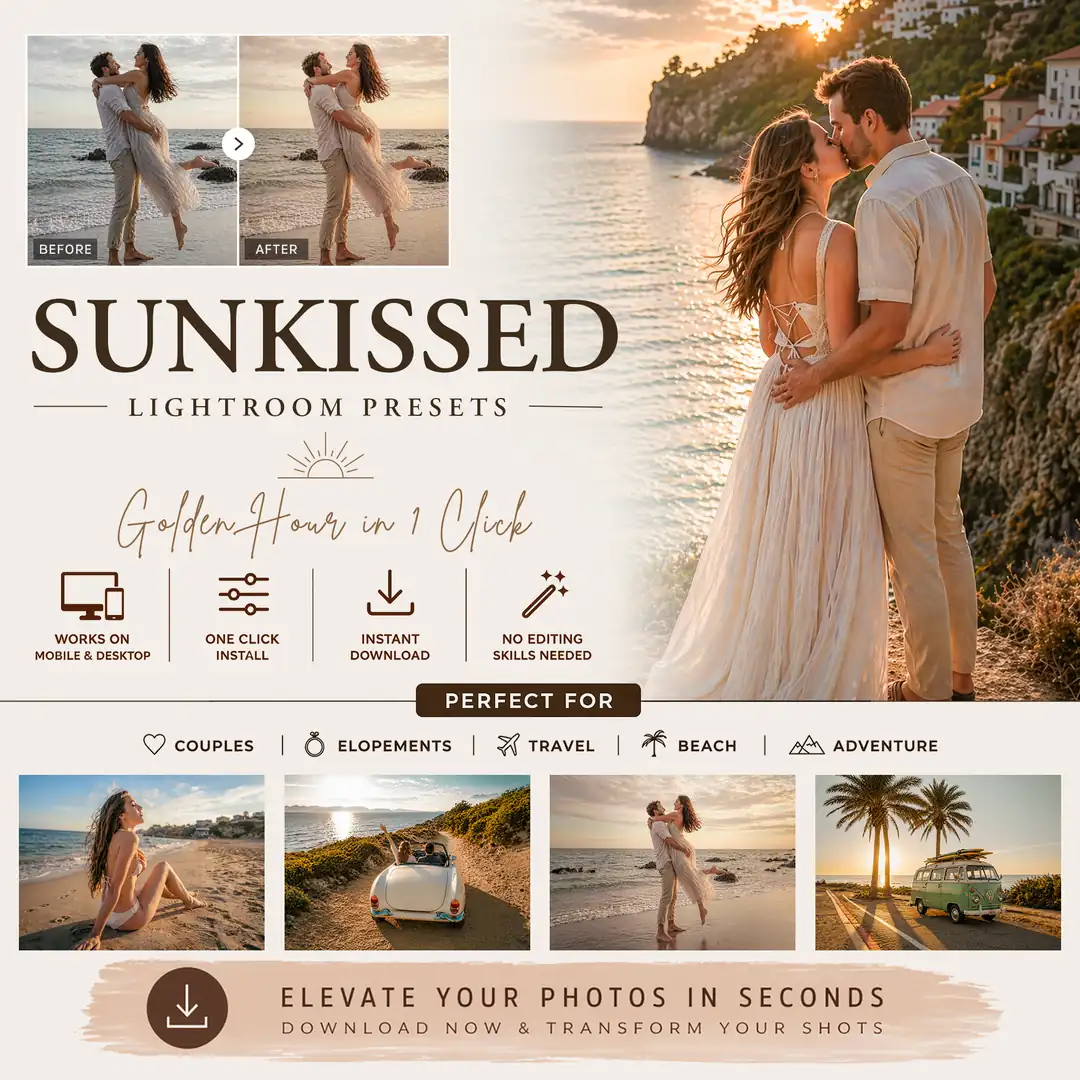


Master Your Workflow: The Complete Guide to Using Lightroom Presets
Master Your Workflow: The Complete Guide to Using Lightroom Presets
Master the art of applying and customizing Lightroom presets to transform your photos. Learn installation tips, best practices, and how to fine-tune presets for perfect results every time. Whether you are a professional or a passionate enthusiast, presets help achieve consistent, stunning visuals quickly and efficiently.
Understanding Lightroom Presets
Lightroom presets are powerful editing shortcuts designed to apply complex adjustments instantly. They go beyond simple filters, adjusting exposure, tone curves, HSL settings, color grading, and more. At EverPixel Studio, we craft these presets to provide "studio-level" quality with just one click, ensuring your portfolio stands out.
Why Lightroom Presets are Essential
- Speed Up Your Editing Workflow: Presets dramatically reduce editing time, enabling rapid batch processing for large events.
- Achieve a Consistent Aesthetic: Ensure visual coherence across your portfolio or social media, creating a signature "Bold Beautiful" style.
- Learn Professional Techniques: Analyzing professional presets reveals expert editing secrets in color theory and exposure.
- Non-Destructive Editing: Presets apply changes without affecting original files, allowing unlimited adjustments.
How to Install Lightroom Presets
Lightroom Classic (Desktop)
- Download & Extract: Download your EverPixel preset files (.xmp) and unzip them.
- Open Lightroom: Navigate to the Develop module.
- Import: Right-click within the Presets panel and select "Import Presets."
Lightroom Mobile
- DNG Method: Import preset-containing DNG files, then save these adjustments as new presets.
- XMP Method: Import ZIP files directly into the mobile app for instant access to entire collections.
Fine-Tuning for Perfect Results
Presets provide excellent starting points, but customization is key to perfection:
- Exposure & Contrast: Adjust brightness and contrast sliders to balance the exposure based on your specific shot.
- White Balance: Correct color casts using the Temperature and Tint sliders to match the mood.
- Intensity: If a look is too strong, fine-tune the sliders to achieve a subtler, more natural result.
Best Practices for Professional Results
- Start with Quality Images: For best preset performance, always shoot in RAW format.
- Consider Context: Evaluate lighting conditions and subject matter (e.g., using a [Real Estate Preset] for interiors vs. a [Newborn Preset] for soft portraits).
- Keep Backups: Store your presets safely in cloud storage for easy access across all your devices.
Elevate Your Photography with EverPixel Studio
Are you ready to transform your images with professional, studio-tested tones? Explore our curated collections designed for high-intent niches like Real Estate, Newborn, and Jewelry photography.